Wama Resto
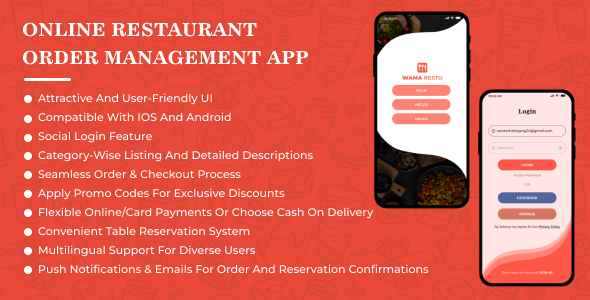
WamaResto: Online Ordering & Restaurant Management
Digital Dining Made Simple
Version: 1.1 | Last Updated: June 2025
WamaResto Features at a Glance
Mobile App Features (Customer Side)
WamaResto’s mobile app focuses on convenience and user-friendly ordering experiences:
- Digital Menu Browsing: Users can scroll through categorized dishes with images, ingredients, and prices. This helps customers make informed and appetizing choices.
- Seamless Checkout: Once items are added to the cart, users can select a delivery address, add special instructions, and choose their preferred payment method — either online via Stripe or cash on delivery.
- Table Reservation from App: Users can book a table in advance by selecting time, date, and party size. They receive confirmation notifications automatically.
- Notifications & Offers: App users are notified of promotions, order updates, and table availability. Engages users and drives repeated usage.
- Order History & Profile: Users can quickly reorder past items, save favorite dishes, and manage their profile with saved addresses.
Admin Panel Features
The WamaResto Admin Panel provides restaurant owners with full control over operations and streamlines restaurant workflows effectively:
- Menu Management: Create and modify categories and food items. Upload images, set prices, and control availability. This ensures your menu is always up-to-date and appealing to customers.
- Order Management: View order details, delete orders, download receipts, and send email receipts. This feature helps kitchen staff and delivery teams stay organized and maintain customer records.
- Reservation Handling: Monitor and approve customer table bookings. View reservation lists and prevent double bookings through a clear schedule view.
- Customer Communication: Use push notifications to inform users about their orders, promotional offers, or service updates. Fully integrated with Firebase.
- Coupon Management: Easily create and manage discount coupons from the admin panel. Set coupon codes, discount percentages, type(Banner or Offer) & Promotional Image. This helps boost customer engagement and reward loyalty.
WamaResto Guide: Setup in Minutes
WamaResto is a complete restaurant management solution with separate modules for customers and restaurant owners. This easy-to-setup Android app helps restaurants digitize their operations and provide a modern experience to their customers.
Note: This documentation is designed to help even non-technical users get started with WamaResto. No programming knowledge is required to follow these instructions.
What Can WamaResto Do For You?
- Food Ordering System – Let customers browse your menu, place orders, and track delivery.
- Table Reservations – Allow customers to book tables in advance to avoid waiting.
- Admin Dashboard – Easily manage menu items, view orders, and handle reservations.
- Push Notifications – Keep customers updated about their order status and promotions.
- Secure Payments – Accept credit/debit card payments safely through Stripe integration.
Getting Started: Step-by-Step Setup Guide
1. Download & Prepare
- Download the WamaResto package from CodeCanyon .
- Extract the ZIP file to your computer.
- Inside the extracted folder, you’ll find two main folders:
- Backend – Contains files for Mobile App APIs
- Mobile App – Contains the Android application
2. Setting Up The Backend Server
- Install WAMP Server:
- Download WAMP Server and install it on your Windows computer.
- Follow the installation wizard’s instructions.
- Once installed, start WAMP by clicking its icon in your start menu.
- Wait until the WAMP icon in your system tray turns green, indicating it’s running properly.
- Install Composer:
- Download Composer and install it.
- During installation, make sure it can find your PHP installation from WAMP.
- Set Up Database:
- Open your web browser and type:
http://localhost/phpmyadmin - Login with username
rootand leave the password empty (default WAMP settings). - Click on “New” in the left sidebar to create a new database.
- Name your database (e.g., “wamaresto”) and click “Create”.
- Select your new database from the left sidebar.
- Click the “Import” tab at the top.
- Click “Choose File” and select the
.sqlfile from the Database folder. - Scroll down and click “Go” to import all the database tables.
- Open your web browser and type:
3. Configure Backend Settings
- Copy the entire Backend folder to
C:\wamp64\www\(or wherever your WAMP www folder is located). - Rename the Backend folder to something simple like
wamaresto. - Open the file
includes/Constants.phpwith a text editor (like Notepad). - Update the following information:
- Database Settings:
define('DB_HOST', 'localhost'); define('DB_USER', 'root'); // Default WAMP username define('DB_PASSWORD', ''); // Leave empty for default WAMP setup define('DB_NAME', 'wamaresto'); // Use the database name you created - Email Settings: (For order confirmations and notifications)
define('MAIL_MAILER', 'smtp'); define('MAIL_HOST', 'smtp.gmail.com'); // Or your email provider's SMTP server define('MAIL_PORT', '587'); define('MAIL_USERNAME', '[email protected]'); define('MAIL_PASSWORD', 'your-email-password'); define('MAIL_ENCRYPTION', 'tls'); define('MAIL_FROM_ADDRESS', '[email protected]'); define('MAIL_FROM_NAME', 'Your Restaurant Name'); - Stripe Payment Settings:
define('STRIPE_SECRET_API_KEY', 'sk_test_your_stripe_secret_key'); define('STRIPE_PUBLISHABLE_KEY', 'pk_test_your_stripe_publishable_key');You can get these keys by creating a free account at Stripe.com
- Database Settings:
- Save the file after making these changes.
Testing Your Backend: Open your browser and go to http://localhost/wamaresto/ (or whatever you named your folder). You should see a welcome page or API message if everything is set up correctly.
4. Setting Up Firebase (For Push Notifications)
- Go to the Firebase Console and sign in with your Google account.
- Click “Add project” and follow the steps to create a new Firebase project.
- Once your project is created, click on the gear icon (⚙️) next to “Project Overview” and select “Project settings”.
- Go to the “Cloud Messaging” tab and find your “Server key”.
- Copy this key and open
includes/Constants.phpagain. - Add this line with your key:
define('FCM_SERVER_KEY', 'your-firebase-server-key'); - Save the file.
5. Setting Up The Android App
For this part, you’ll need to hire an Android developer or learn some basic Android development. Here are the key steps they’ll need to follow:
- Update API URL:
- Open the file
com.wama.wamaresto.retrofit.RetrofitUtils.kt - Find the line with
BASE_URLand change it to point to your server’s URL:public static final String BASE_URL = "http://your-server-address/wamaresto/"; - For local testing, you can use your computer’s IP address:
(Replace 192.168.1.x with your actual IP address)public static final String BASE_URL = "http://192.168.1.x/wamaresto/";
- Open the file
- Firebase Setup for App:
- In Firebase Console, go to Project settings
- Click “Add app” and select Android
- Enter your app’s package name (e.g., com.yourcompany.wamaresto)
- Download the
google-services.jsonfile - Place this file in the
app/folder of your Android project
- Customizing Your App:
- App Name: Edit
app/src/main/res/values/strings.xmland change the app_name value - App Logo: Replace the files in
app/src/main/res/mipmap/with your restaurant logo - App Colors: Edit
app/src/main/res/values/colors.xmlto match your brand colors
- App Name: Edit
6. Building & Publishing Your App
Once your app is configured:
- Ask your developer to generate a signed APK or Android App Bundle.
- Create a Google Play Developer account (one-time $25 fee) at Google Play Console .
- Follow Google’s instructions to publish your app to the Google Play Store.
For app publishing, we recommend working with an experienced Android developer who can ensure your app meets all Google Play Store requirements.
How to Use WamaResto
For Customers:
- Launch the App: Open the WamaResto app on your Android device to start browsing and ordering.
- Browse Menu: Explore a wide range of dishes by category or search. View high-quality images, descriptions, and pricing details for each item.
- Add to Cart: Select your preferred items and quantity, then tap “Add to Cart.” Items can be edited or removed anytime before checkout.
- Seamless Checkout: Choose your delivery address or reservation details. Add special instructions if needed, then pay securely via Stripe or opt for cash on delivery.
- Profile & Order History: Save addresses for faster checkouts. Easily reorder from your history and track past transactions.
- Table Booking: Tap the ‘Reservations’ tab, select your date, time, and number of guests, then confirm your table. Booking confirmations and updates are sent instantly.
- Apply Coupons: Use discount coupons at checkout for special offers, loyalty rewards, and seasonal deals.
- Notifications & Offers: Stay informed through push notifications about order updates, exclusive promotions, and app announcements.
For Admins:
- Login: Access the admin panel securely using your assigned credentials.
- Dashboard Overview: Monitor daily operations with real-time stats on orders, reservations, and earnings.
- Manage Users: View, edit, or delete customer and staff accounts. Track user activity, view order histories, and manage roles and permissions.
- Menu Management: Create and edit food categories and items. Upload images, set pricing, and toggle availability to keep the menu current and attractive.
- Order Management: View order details, delete orders, download receipts, and send email receipts. This feature helps kitchen staff and delivery teams stay organized and maintain customer records.
- Reservation Handling: Approve or cancel table bookings. Use the schedule view to prevent double bookings and manage peak hours effectively.
- Push Notifications: Communicate with customers via Firebase-integrated push notifications—send order updates, promotions, or system alerts.
- Coupon Management: Create and manage discount coupons by setting code, value, usage limits, and expiry dates. Great for campaigns and user retention.
- Reports & Analytics: Access detailed reports on sales, orders, user behavior, and coupon usage to make data-driven business decisions.
Need Help?
If you encounter any issues during setup or have questions, please contact our support team:
- Email: [email protected]
- Contact form: https://wamatechnology.com/contact
We also offer installation services for a small fee if you prefer to have our team set everything up for you.
FAQs
General Questions
Q: Do I need coding knowledge to use WamaResto?
A: For basic setup, you don’t need coding knowledge if you follow this documentation. For customizations beyond colors and text, you might need a developer’s help.
Q: What devices does WamaResto work on?
A: WamaResto is designed for Android devices running Android 6.0 (Marshmallow) or higher.
Q: Does WamaResto work offline?
A: No, both the customer app and admin panel require an internet connection to function properly.
Setup Questions
Q: Can I use a web hosting service instead of my own computer?
A: Yes, you can use any web hosting service that supports PHP and MySQL. Upload the Backend files to your hosting and follow similar configuration steps.
Q: Do I need a Google Play Developer account?
A: Yes, to publish your app on the Google Play Store, you’ll need a Google Play Developer account which costs a one-time fee of $25.
Q: Can I use WamaResto without Stripe payment integration?
A: Yes, you can configure the app to use Cash on Delivery (COD) only if you prefer not to use online payments.
Customization Questions
Q: Can I change the app colors to match my restaurant’s branding?
A: Yes, you can easily change the app’s colors by editing the colors.xml file as explained in the documentation.
Q: Can I add my own payment gateway instead of Stripe?
A: Adding a different payment gateway would require custom development beyond the scope of the standard package.
Q: Can I modify the app’s layout and design?
A: Basic modifications like colors and text can be done easily. Significant layout changes would require Android development knowledge or hiring a developer.